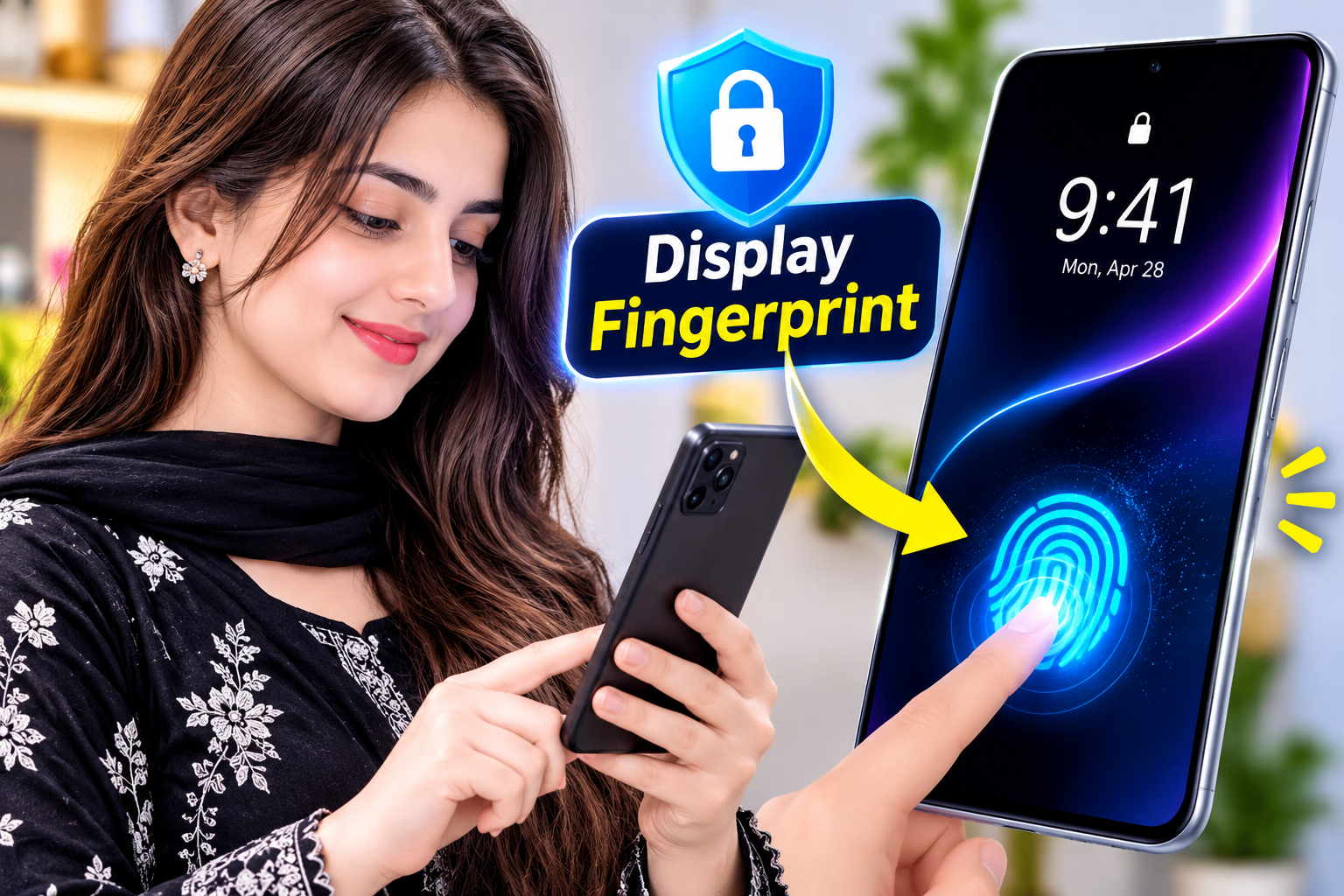
stered finger touches the scanning area, the sensor examines its unique characteristics and compares them with the fingerprint information saved on the device. If the details match, the phone unlocks.
Different Types of Fingerprint Sensors Used in Android Phones
Android manufacturers use different fingerprint technologies depending on the smartphone’s design and price category.
1. Optical Fingerprint Sensors
Optical fingerprint sensors use light to capture the patterns of a fingerprint through the display. The system analyzes the captured image and checks whether it matches the registered fingerprint.
These sensors are commonly available in many mid-range and premium smartphones.
2. Ultrasonic Fingerprint Sensors
Ultrasonic sensors use sound waves to identify the unique details of a fingerprint. They create a more detailed representation of fingerprint patterns than traditional optical scanning methods.
Some premium Android smartphones use this technology because it can provide accurate recognition and additional protection against certain spoofing attempts.
3. Physical Fingerprint Sensors
Not every Android smartphone has a fingerprint scanner under its display. Many devices still use physical sensors installed on the side frame or power button.
Although their placement is different, they can provide convenient and reliable biometric authentication.
Can You Get Display Fingerprint Effects on Any Android Phone?
This is one of the most common questions among Android users.
The answer depends on the hardware and software capabilities of your smartphone.
A genuine in-display fingerprint scanner cannot be installed through an ordinary Android application. It requires compatible hardware that must be included in the original smartphone design.
However, users with traditional fingerprint scanners can still personalize their lock screens and explore certain visual effects.
Some customization applications provide animated graphics, fingerprint-inspired designs, and decorative screen elements. These effects can change the appearance of your smartphone, but they cannot turn a physical fingerprint reader into an actual display fingerprint sensor.
Understanding this difference can help you avoid applications that make unrealistic promises.
How to Customize Fingerprint Features on Android
There are several ways to improve the appearance and functionality of your smartphone’s fingerprint experience.
1. Check Your Built-In Fingerprint Settings
The easiest method is to explore the security settings already available on your Android device.
Follow these general steps:
- Open the Settings application.
- Navigate to Security, Privacy, or Biometrics.
- Select Fingerprint or Fingerprint Unlock.
- Enter your existing PIN or password if requested.
- Explore the available fingerprint options.
Depending on your smartphone manufacturer, you may find options for fingerprint recognition, touch feedback, screen unlocking, and supported visual effects.
The available settings can differ between Samsung, Xiaomi, Oppo, Vivo, Realme, and other Android devices.
2. Explore Fingerprint Animation Options
Some smartphones offer different animations that appear when you touch the fingerprint scanning area.
These animations can make unlocking feel more modern and visually attractive.
Depending on your device, available options may include:
- Colorful fingerprint animations
- Minimal unlocking effects
- Animated scanning indicators
- Different fingerprint icons
- Customized screen feedback
If your smartphone supports these features, you can select an animation that matches your preferred appearance.
3. Personalize Your Lock Screen
Your lock screen plays an important role in the overall appearance of your smartphone.
Android provides several personalization options that can make your device look more attractive.
You can experiment with:
- High-quality wallpapers
- Different clock styles
- Custom notification layouts
- Dynamic backgrounds
- Supported always-on display designs
These changes can improve the appearance of your device without interfering with its biometric security system.
4. Use Reliable Android Customization Applications
Some applications offer additional visual customization features for Android smartphones.
Depending on the application and device compatibility, you may find fingerprint-inspired animations, screen decorations, lock screen themes, and visual indicators.
Before installing an application, check its description carefully to understand what it actually does.
Remember that third-party customization applications cannot create genuine fingerprint authentication hardware or replace your phone’s original security system.
Important Requirements Before Customizing Your Phone
Before changing your smartphone’s appearance, consider the following points:
- Make sure your Android operating system is updated.
- Check whether your device supports the desired customization feature.
- Keep sufficient storage space available.
- Use applications from trusted developers.
- Review application permissions before installation.
- Maintain your existing PIN, password, or biometric protection.
Following these basic recommendations can help you enjoy customization features without unnecessary security risks.
How to Improve Fingerprint Recognition on Android
Apart from appearance, fingerprint performance is another important consideration.
If your smartphone sometimes takes longer to recognize your finger, a few simple steps may help.
Keep the Sensor Clean: Dust, fingerprints, and other particles can affect recognition. Gently clean the sensor area with a soft, dry cloth.
Register Your Finger Correctly: During fingerprint registration, follow the instructions displayed on your phone and cover different parts of your fingertip.
Use a Compatible Screen Protector: Some thick or incompatible screen protectors may interfere with under-display fingerprint recognition.
Keep Your Software Updated: Manufacturer updates can include security improvements and fixes for biometric-related problems.
Re-register Your Fingerprint: If recognition becomes inconsistent, removing and registering your fingerprint again may help.
Are Third-Party Fingerprint Animation Apps Safe?
Not every customization application offers the same level of privacy and security.
Some applications may provide useful visual features, while others may request unnecessary permissions or display excessive advertisements.
Before downloading any application, consider these safety practices.
Download Applications from Trusted Sources
Prefer the Google Play Store and check the developer’s information before installation.
Check App Permissions
A simple visual customization application generally should not need unrestricted access to private information such as contacts, messages, or personal files.
Read Recent User Reviews
Reviews can help you understand whether an application works properly on your Android version.
Check the Privacy Policy
Look for information about data collection, advertising, and third-party sharing.
Avoid Unrealistic Claims
Be careful with applications claiming to activate a genuine in-display fingerprint scanner on phones that do not contain the required hardware.
Benefits of Fingerprint Customization
Customizing your smartphone’s fingerprint experience can offer several advantages.
Better Visual Appearance: Attractive animations and compatible screen effects can make your phone feel more modern.
Personalized Experience: You can select visual styles that match your wallpaper, theme, and personal preferences.
More Enjoyable Interaction: Small visual effects can make everyday smartphone interactions more interesting.
Simple Customization: Most supported appearance settings can be changed without advanced technical knowledge.
Preserved Hardware Security: When you use built-in customization options, you can enjoy a personalized interface while continuing to rely on the phone’s original biometric authentication.
Common Myths About Display Fingerprint Technology
There is considerable confusion about what Android applications can actually do.
Here are some important facts.
Myth 1: An Application Can Add a Real Display Fingerprint Scanner.
Fact: A genuine under-display fingerprint scanner requires specialized physical hardware. An application cannot create this component.
Myth 2: Secret Codes Can Activate Missing Fingerprint Hardware.
Fact: Android diagnostic codes may provide access to certain device information or testing options, but they cannot install missing hardware.
Myth 3: Rooting Makes Every Android Phone Support Display Fingerprints.
Fact: Root access can modify certain software functions, but it cannot transform a traditional fingerprint sensor into an under-display scanner.
Myth 4: All Fingerprint Animation Apps Improve Security.
Fact: Visual animations are mainly designed for appearance. They should not be considered replacements for genuine biometric authentication.
Why Fingerprint Security Matters in 2026
As people increasingly use smartphones for online banking, communication, shopping, and personal activities, protecting mobile information has become essential.
Fingerprint authentication offers a convenient way to unlock compatible Android devices and approve supported security requests.
It can also work with compatible applications and payment services, depending on the device, software, and regional availability.
However, users should remember that biometric authentication is only one part of smartphone security. Keeping Android updated, using strong backup passwords, and avoiding suspicious applications are equally important.
Frequently Asked Questions (FAQs)
1. Can I get a display fingerprint scanner on any Android phone?
No. A genuine display fingerprint scanner requires dedicated hardware. Phones without compatible hardware cannot gain this feature through an application.
2. Can I customize fingerprint animations without rooting my phone?
Yes. If your smartphone supports built-in animation settings or compatible customization applications, you can change certain visual effects without root access.
3. Do fingerprint animation applications improve security?
No. Most fingerprint animation applications are designed for visual customization rather than improving biometric security.
4. Are fingerprint customization applications free?
Some applications offer free features, while others may include optional paid features or advertisements. Check the application details before installing.
5. Why is my Android fingerprint scanner not working properly?
Possible reasons include a dirty sensor, incorrect fingerprint registration, an incompatible screen protector, or a software issue.
6. Does every Android phone support under-display fingerprint technology?
No. Support depends on the smartphone’s hardware design and manufacturer.
7. Is it safe to use third-party lock screen applications?
Some applications may be safe, but users should always review developer information, permissions, privacy policies, and recent reviews before installation.